

 Updated : February 4, 2026
Get an AI-powered summary for this content:
Customers’ expectations are at an all-time high. They expect businesses to deliver them personalized interactions. And they even get frustrated when this does not happen.
So, the million-dollar question is: how do businesses provide personalized interactions?
“Call recording” could be the solution. And its wide adoption (19% growth rate by 2030) only makes our case stronger.
With call recording, businesses can review each customer interaction to personalize their service.
In this blog, we will understand how to record phone calls on multiple devices. Also, we will learn how to call legally, the best phone call recording apps, and much more.
How to Record a Phone Call on an iPhone?
Recording calls on an iPhone is easy, as iPhones have a built-in call recording feature. This makes the recording phone conversation process quite simplified. However, it is crucial to remember that this feature isn’t available in all countries/regions. You must have an iPhone with iOS 18 or higher to use this feature.
Steps to record the phone call on an iPhone:
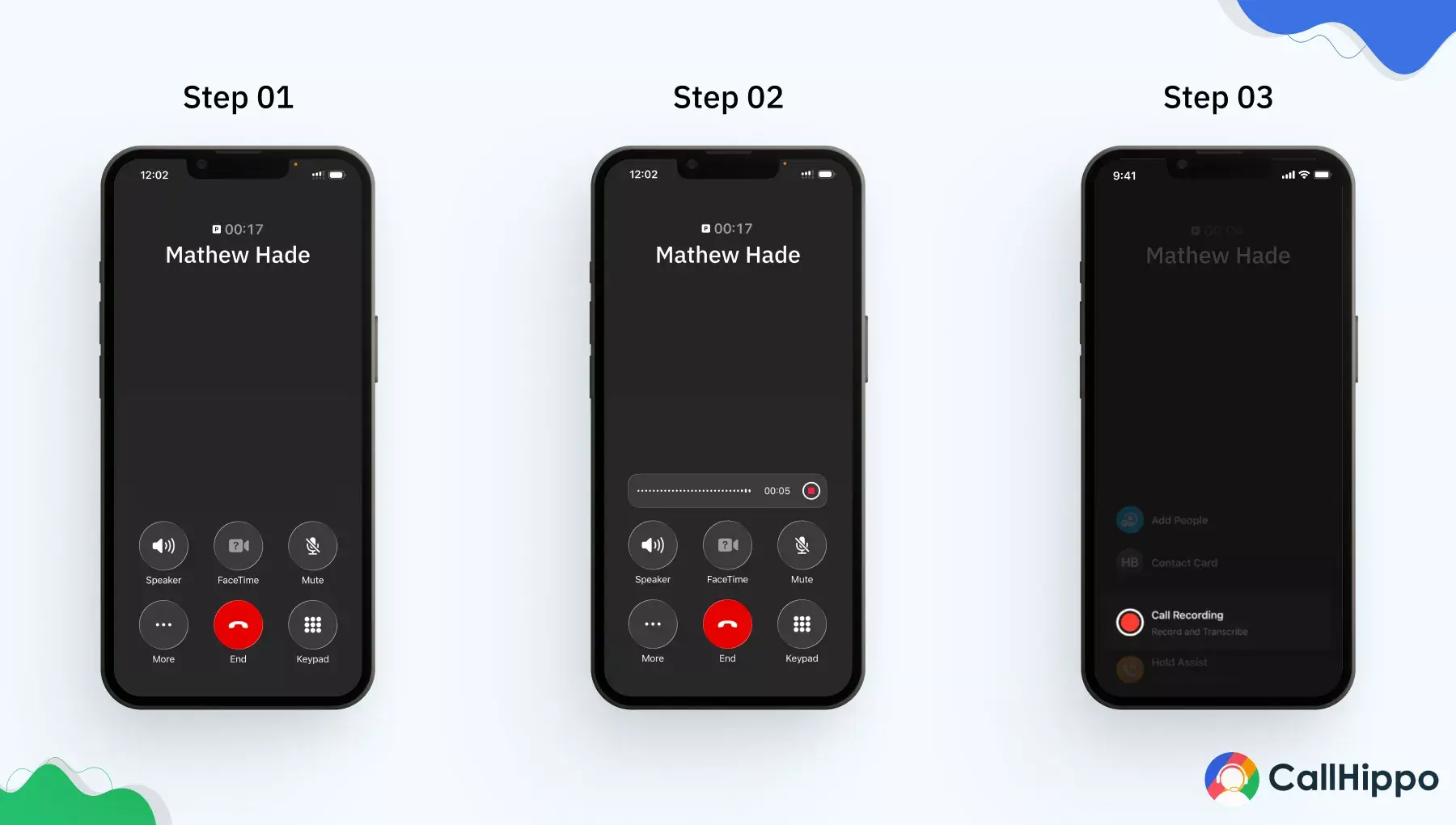
1) Go to the phone app, make the call.
2) After the call is picked, you can click the three dots (bottom left-side on your screen).
3) You will see a call recording button; click on it.
4) Once you click, both parties will be verbally notified with an audio message about the call recording (for consent purposes).
5) The call recording will start.
6) To stop the call recording, you can just tap on the “Stop” button or just hang up the call.
How to Record a Phone Call on Android?
Call recording on an Android phone is almost similar to that on an iPhone. With just a few simple steps, you can start recording calls.
However, unlike the iPhone, Android devices are of two types: Pixel and non-Pixel. Both have slightly different ways of recording calls. Also, for non-Pixel devices, it should be Android 9 and up. And for Pixel devices, it should be Android 14 and up (Pixel 6 and up).
Steps to record cell phone calls on a non-Pixel device:
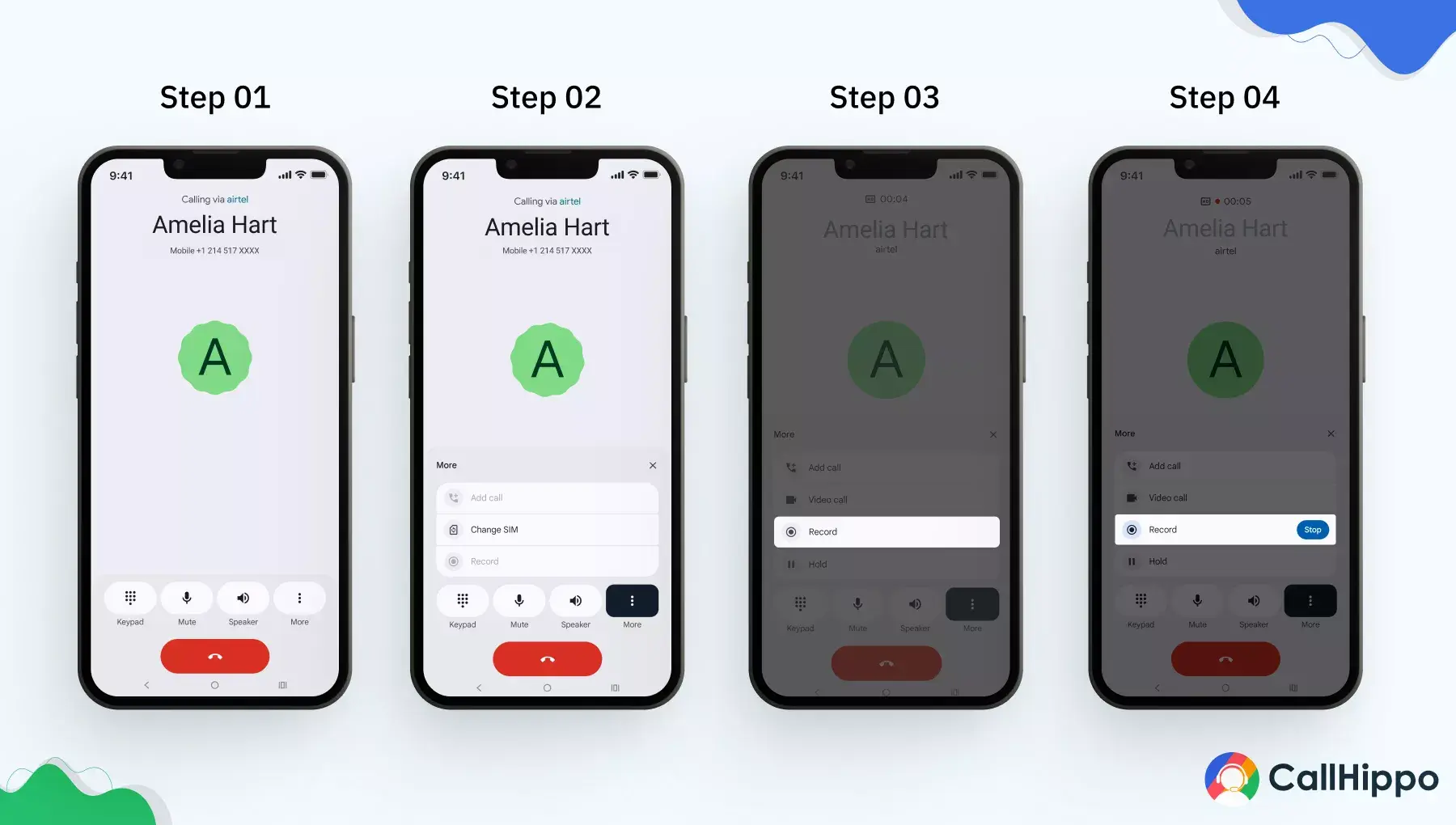
1) Go to the Android mobile phone app and make the call.
2) Then, you need to click on the three dots (bottom right-side on your call screen).
3) Tap “Record” button.
4) Once you click the button, both parties will hear a verbal audio message. Typically, the message is “Your call is now being recorded”.
5) The call recording starts.
6) To stop recording, you can click on the “Stop” button. Or else you can just hang up.
Steps to record the phone call on a Pixel device:
1) Go to the Pixel device phone app and make the call.
2) Then you need to tap on “Call Assist”.
3)You can see a “Call Recording” button; click it.
4) As you click on the button, both parties can hear a voice announcement.
5) The call recording will start. And to stop call recording, just click on the “Stop” button or hang up.
How to Record Phone Calls on Your Computer?
If you are a business recording calls on a regular basis, you can use CallHippo to make the process easier. Along with mobile devices (iPhone and Android), CallHippo works well with computers (Macs and PCs) as well. A good stable internet connection or a strong Wifi is all you need. Let’s explore how you can record calls on your computer with CallHippo.
Steps to record calls on your computer with CallHippo:
1. Login to your CallHippo dashboard. When you hover on the “Number and DID” option, you will see a “Number” option; click it.
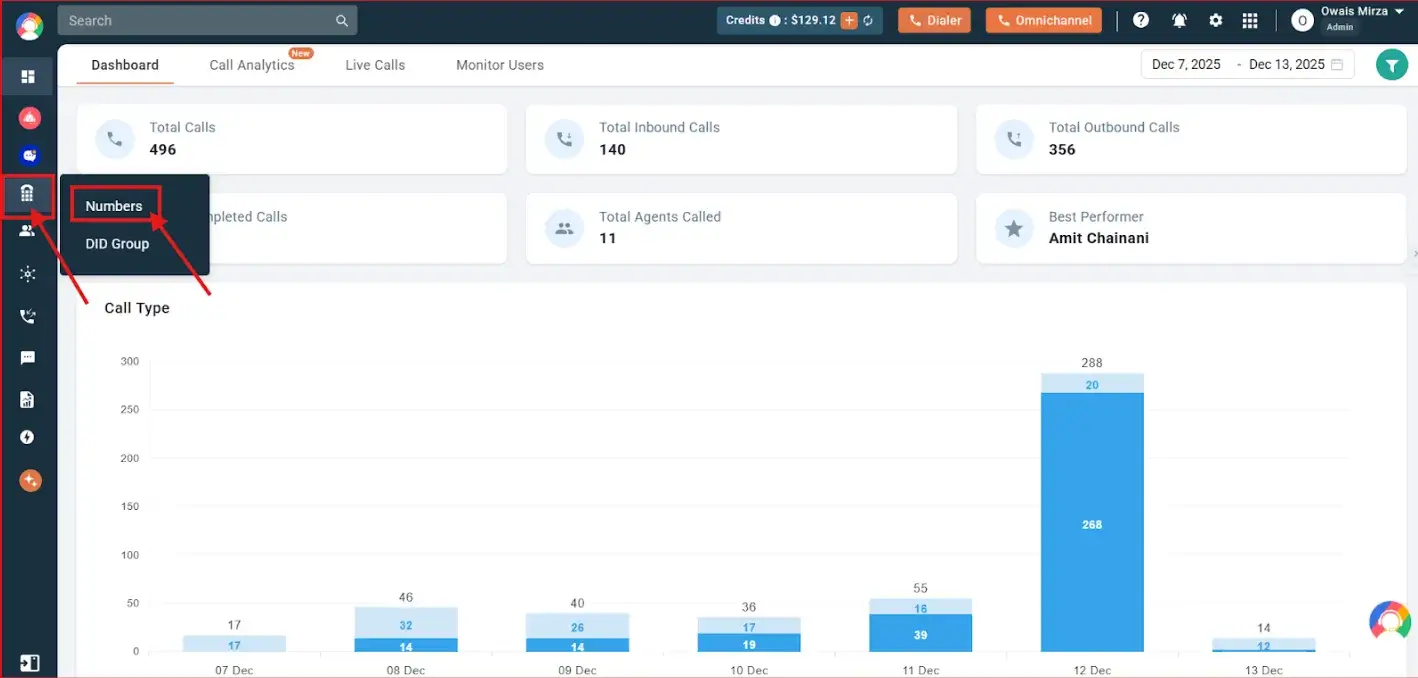
2. A list of numbers will appear. You have to click on the “Select” icon of the number you want to record calls for.
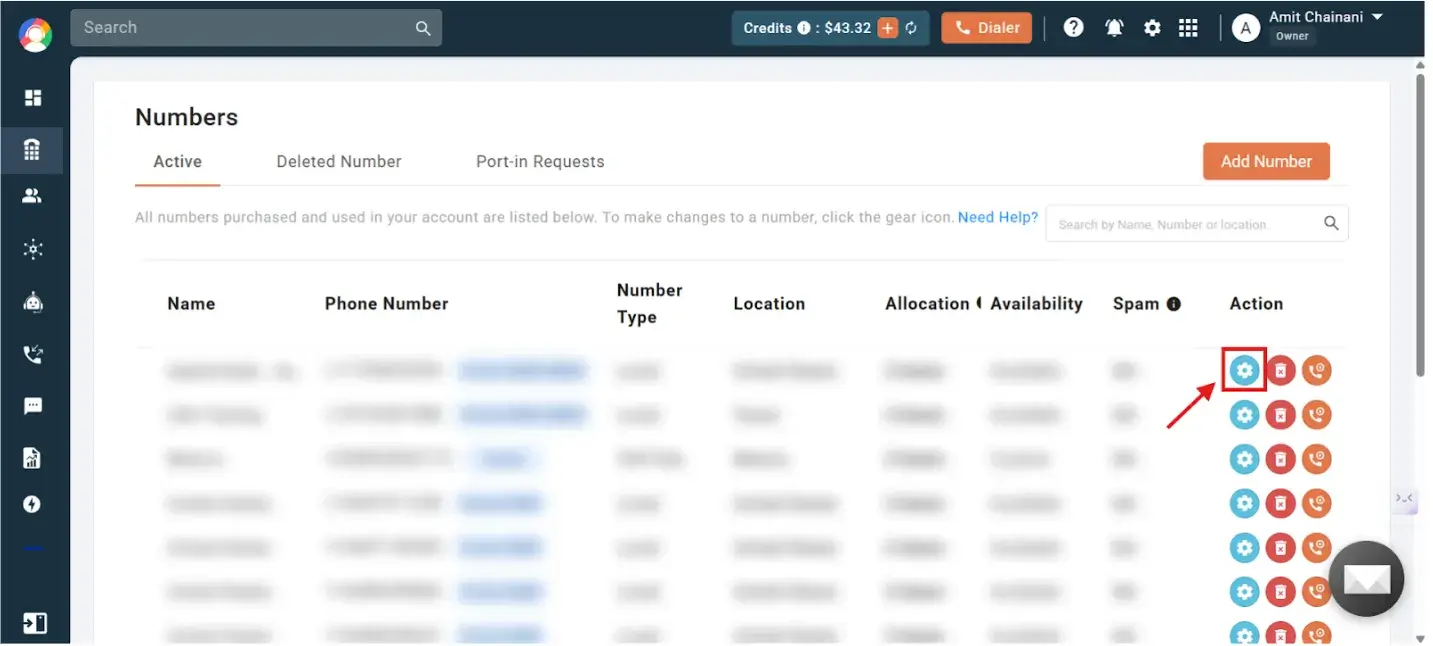
3. Then, click on the call recording toggle to enable call recording.
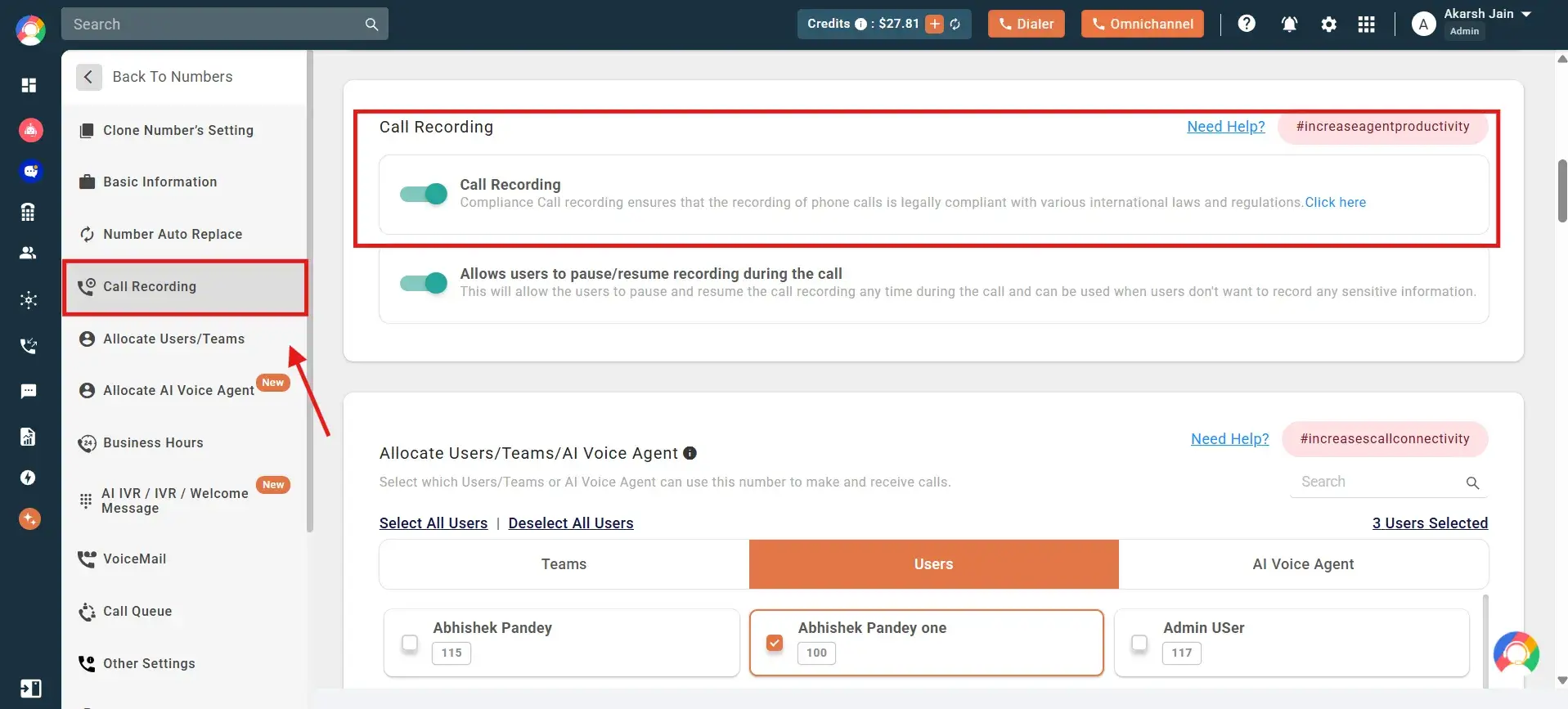
With CallHippo, you just have to follow these three simple steps, and your call recording will be enabled.

Turn Your Calls Into Conversion Intelligence. Activate CallHippo Recording Today.
Take a 10-Day Free Trial No credit card is required!
Best Call Recording Apps and Tools in 2026
If your device (iPhone, Android, or computer) does not provide a built-in recording feature, you can simply start using a call recording app to record calls. Here is a list of the best call recording apps that can help you record a phone call.
1) CallHippo
CallHippo is a cloud-based unified communications and call recorder app created to simplify complex communication operations for businesses of all sizes. It offers a perfect blend of features with automation and AI-capabilities.
CallHippo’s recording call app allows businesses to capture both inbound and outbound calls. It also stores each call recording safely in the cloud. As each recordings are stores on the cloud, CallHippo makes it easy to access them as well whenever needed. Users can even tag, annotate, and download recordings.
CallHippo Features
- Call Recording
- Call Analytics
- Call Barging
- Call Monitoring
- Smart Call Forwarding
- Call and Video Conference
- Automatic Call Distribution
Positive User Review
Users report that CallHippo’s call recording is essential for quality assurance and training. They find it easy to access and download recordings, though some wish for better integration with CRM systems. Reviewers appreciate the automatic recording feature but note that the audio quality could be improved.
Negative User Review
Some reviewers note that while call recording works, the audio quality could be improved, and integration with CRM systems (e.g., auto-attaching recordings to contacts) is limited or missing.
Pricing
- Basic: $1 per user/Month
- Starter: $19 per user/Month
- Professional: $29 per user/Month (Popular)
- Ultimate: $45 per user/Month
*pricing as on 03/02/2026
2) TapeACall Pro
TapeACall Pro is a mobile call recorder app that helps capture conversations easily. Its users can record both incoming and outgoing calls with just a few taps. Users can export and play the recordings instantly. The recordings can even be shared via email and apps. With TapeACall Pro, users can store unlimited recordings, making it ideal for those who need a simple, on-the-go call recording solution.
TapeACall Pro Features
- Call Recording
- Easy Sharing
- Export Recordings
Positive User Review
A long-time user enjoys how easy it is to record calls and then upload recordings to cloud storage or share them with clients, calling it a core business tool.
Negative User Review
Another user reports poor behavior on conference calls, where a disruptive buzzing noise appears in recordings, making them difficult to use for that purpose.
Pricing
Monthly: $9.99 per month (Incoming/outgoing call recording, unlimited storage, transcriptions, and more)
(Note: To download the TapeACall app, you have to pay a $10.99 fee. Also, for unlimited recording, the pricing and plans differ.)
*pricing as on 03/02/2026
3) Google Voice
Google Voice is a VoIP phone service that gives you a single number across devices for voice calls, voicemail, and messaging. It offers basic call recording for incoming calls on supported plans. Voicemails are transcribed into text and delivered to your inbox for easy review. The service integrates tightly with Google Workspace and routes calls to linked devices seamlessly.
Google Voice Features
- Voicemail Transcription
- Spam Call Filtering
- Integration with Google Workspace
- Voicemail Forwarding
Positive User Review
I love having a number I can use just for business. It takes voicemail and receives text messages. You can also forward calls anywhere you need. Also, spam calls are automatically separated and silenced. Voicemail messages are in text, so you can quickly read them.
Negative User Review
Voicemail sound is little bit low and sometimes the text doesn’t be same as the caller’s pronunciation. Need to improvise on this. It has limited availability for call recording, it’s not worth for the cost.
Pricing
- Starter: $10/user/month
- Standard: $20/user/month
- Premier: $30/user/month
*pricing as on 03/02/2026
4) Rev
Rev Call Recorder helps users record calls with top-notch audio quality. It integrates seamlessly with Rev’s transcription services, offering both AI and human-generated text transcripts. With Rev, recordings and transcripts can be easily shared or exported in multiple formats.
Rev Features
- Call Recording
- Voice Capture
- Automatic transcript
- Easy File-sharing
Positive User Review
Works fine. Call quality can get a little muffled, but it does the job and even allows you to save the file for future offline usage. Highly recommend this app for anyone that needs a simple but effective call recording app.
Negative User Review
The calls have been echoing, going in and out, statically, and dropping signals! Recordings don’t carryover to new devices.
Pricing
- Free: Free
- Basic: $9.99 per seat/month
- Pro: $20.99 per seat/month
- Enterprise: (Contact for more details)
*pricing as on 03/02/2026
Quick Comparison: Which Call Recording App is the Best?
Choosing the right call recorder app is crucial. Below is a quick comparison to help you choose the best call recording app for your business.
| Feature | CallHippo | TapeACall Pro | Rev Call Recorder | Google Voice |
|---|---|---|---|---|
| Primary Purpose | Full business VoIP phone system | Mobile call recording | Recording + transcription | VoIP calling with basic recording |
| Record Incoming Calls? | Yes | Yes | Yes | (limited) |
| Record Outgoing Calls? | Yes | Yes | Yes | (not native) |
| Automatic Call Recording | Yes | No | No | No |
| Transcription Available | No | No | Yes (AI & human) | No |
| Cloud Storage | Yes | Yes | Yes | Yes |
| CRM Integration | Yes | No | No | No |
| Average Ratings | 4.4/5 | 2.9/5 | 4.4/5 | 4.3/5 |
(Average ratings are calculated by evaluating ratings from G2, Capterra, GetApp, Trustpilot, and Software Advice).
DID YOU KNOW?
- North America has the largest share of the call recording software market. As of 2025, it holds 41.12% market share.
How to Record Phone Calls Legally?
Businesses must understand that recording calls legally is crucial. Even if, for quality and compliance purposes, if required, they must ask for consent first. Otherwise, it can cause legal actions and penalties. Let’s see how businesses can record the phone call legally.
1) One-party Consent
One-party consent requires only one person to provide permission. That person can be you as the caller or receiver. You can legally record without informing the other party. However, it is crucial to note that the misuse of recordings can still create legal issues. It is a must for businesses to store recordings responsibly and use them ethically.
2) Two-party Consent
Two-party consent requires the consent of both parties on the call. You must inform the other person as well before the recording begins. Recording without consent can be illegal, and your business can even be penalised for it. A simple verbal notice is usually enough. Once consent is given, recording becomes legal.
3) Rule of Thumb
Always informing the other person before recording should be a mandatory practice for businesses. This helps them stay distant from legal risk. Transparency protects both parties from disputes. Even in one-party regions, disclosure is considered a safer option. This simple habit prevents serious legal trouble.
(Note: The consent type needed depends on the country and region you make the call to.)
Tips for Maintaining Privacy and Consent When Recording Calls
Privacy and consent are crucial when we speak of call recording. Also, call records should be used legally and ethically. Here are the tips that can help businesses maintain privacy and consent when recording calls.
1. Let participants know before recording: Before the call begins, clearly mention that it is being recorded. Do not use any vague disclosures. Instead, use direct language.
2. Obtain valid consent: Ensure consent is explicit. Also, businesses should not treat silence as consent in strict jurisdictions.
3. Record only what’s needed: Record calls strictly for the mentioned purpose. Avoid collecting unnecessary personal data.
4. Limit access to recordings: Give access to authorized personnel only. Use quality call recording software that offers top-notch security features. This can help in maintaining audit logs to track access.
5. Secure recordings properly: Great software can even help in storing recordings using encryption and secure infrastructure. Businesses should not store files on unsecured drives.
6. Avoid misuse & unauthorized file-sharing: Do not forward/reuse recordings outside the original intent. Secondary usage can result in violating privacy laws.
7. Regularly train employees: Train your staff to understand legal obligations and ethical handling.
8. Review compliance: Carry out audits/reviews to ensure your practices stay aligned with the changing laws and standards.
Managing and Using Your Recorded Calls
Recording calls is just the first step. Managing and using call recording is what defines its impact on businesses. Here’s how you should manage and use call recordings.
1) How to Access, Play, and Organize Recorded Calls on Different Devices?
Each different device has a unique path to access recorded calls. If using a built-in call recording feature, the recorded calls automatically get saved in your divide. Here’s how you can access the call recordings. On iPhone, you need to open the Notes app to access recordings, while on Android, you need to access the recorded file from the file manager.
If you want to keep everything centralized, you can use CallHippo’s call recording system. Its unified dashboard helps you access recordings across devices. It also helps you in avoiding scattered storage and lost files. You can even apply filters like date, agent, or call type to retrieve recordings faster.
2) How to Convert Call Recordings to Text Transcripts?
To speed up the process of converting recordings into transcripts, businesses can use AI transcription tools. These tools support multiple languages. However, to ensure accuracy, you might need to review the transcripts manually.
Using tools like CallHippo can help businesses improve search, compliance, and coaching workflows. Transcripts can enable keyword analysis and quality monitoring. This improves accessibility for teams.
3) Sharing and Securing Your Recordings
Businesses must share recordings only with authorized users and should also use permission-based access. This keeps the recorded files secure. CallHippo helps in encrypting recordings during storage and transfer. It also maintains access logs for audits and compliance. Its strong security prevents misuse.
4) Setting Retention and Deletion Policies for Recordings
Businesses must define how recordings should be stored. Also, automatic recording deletion can help avoid unnecessary data risks. Compliance calls may need longer storage. Routine calls can be deleted in a shorter time span. Document policies and ensure to enforce them consistently. Also, it can be great practice to review policies regularly for relevance.
Conclusion
Recording phone calls can be extremely useful, but only when done correctly. The crucial factor is selecting a way to record calls that fits your needs. Businesses also have to keep the legal and ethical aspects in mind. Therefore, businesses must always prioritize consent and responsible usage. They can even use call recorder apps like CallHippo for accuracy, accountability, and better communication.

Missing Important Details from Customer Calls?
Record every inbound and outbound call with CallHippo so nothing gets lost.
bottom circle
FAQs
1. Is it legal to record phone calls without consent?
This depends on the country or region where you are calling. Some countries follow strict consent laws, while some allow recording without consent. However, to prevent legal disputes, it can be a good practice to always ask for consent before recording.
2. What are the best apps for recording phone calls?
CallHippo and Rev are the best call recorder apps. They are cost-effective, easy to use, and offer high-quality call recording. If your business requires more than call recording, among the two, CallHippo might be a more suitable option.
3. Where are my recorded calls stored, and how do I access them?
When recording a call from an iPhone, the call recording files are stored in the Notes app. If recording from an Android, the files can be accessed via a file manager.
4. Can I record both incoming and outgoing calls with Google Voice?
Google Voice only supports recording for incoming calls and requires manual activation during the call.
5. What should I do if my phone doesn’t have built-in call recording?
If your phone does not have built-in call recording, you can simply download an app. This can help you easily record calls from your phone.
6. How do I get consent before recording a phone call?
When you click on the “Record” button to start recording calls, an automated verbal announcement is made on both the callers’ and the receiver’s phones. This can work as consent. Or else, you can simplify the ask to the other party at the start of the call. And only proceed when they agree.
Published : February 3, 2026

Ankit Dudhwewala is the CEO and Co-founder of CallHippo, a leading virtual phone system designed to optimize business communication through AI and automation. With a strong background in marketing and business administration, Ankit has successfully built and bootstrapped CallHippo. Ankit’s leadership and innovative approach have made him a prominent figure in the SaaS industry, driving growth and shaping the future of business communication solutions.

Let’s Stay in Touch
Subscribe to our newsletter & never miss our latest news and promotions.
 24k+ people have already subscribed
Source